Guide
How to run multiple Sunday services from one run of show
Most churches run the same service more than once on a Sunday. Here is how to plan it once, run it twice, and keep the stage screens, links and volunteers exactly where they are.
Build one rundown for the first service, then add each service time to it. The rundown moves its times to whichever service is running, rows like a baptism can be limited to one service, and between services the operator presses Reset for the next service. Every screen and link stays the same, the screens show a countdown to the next service, and the timing report keeps each service apart.
ON THIS PAGE
- What you need before you start
- Step 1: Open Service times
- Step 2: Add each service
- Step 3: Mark the rows that only happen in one service
- Step 4: Run the first service as usual
- Step 5: Reset the room for the next service
- Step 6: Compare the services afterwards
- Christmas Eve: several services in one evening
- Tips from Sunday mornings
- FAQ
A church that runs a 9:00 and an 11:00 service usually has two bad options: copy the run of show and send new links to every volunteer, or run the same document twice and lose track of what happened in the first service. Service times in runofsho give you a third: one rundown, the same room and the same links all morning, with each service kept apart where it matters.
The screenshots below are from the real app, planning a Sunday at a church with a sanctuary, a kids' room and lobby screens.
What you need before you start
- A rundown for one service. Build it for the first service with real durations. If you are starting from nothing, the free worship service template has the usual order: countdown, worship set, welcome, giving, scripture, message, response and dismissal.
- A show start. Set the date and time of the first service in the Show start field at the top of the editor. Service times are measured from it.
- One room for the sanctuary. The stage monitor, the confidence screen and the lobby display are all output links of that room. They stay the same for every service.
Service times work on every plan, including Free. The side-by-side report in step 6 is part of the Studio plan.
Step 1: Open Service times
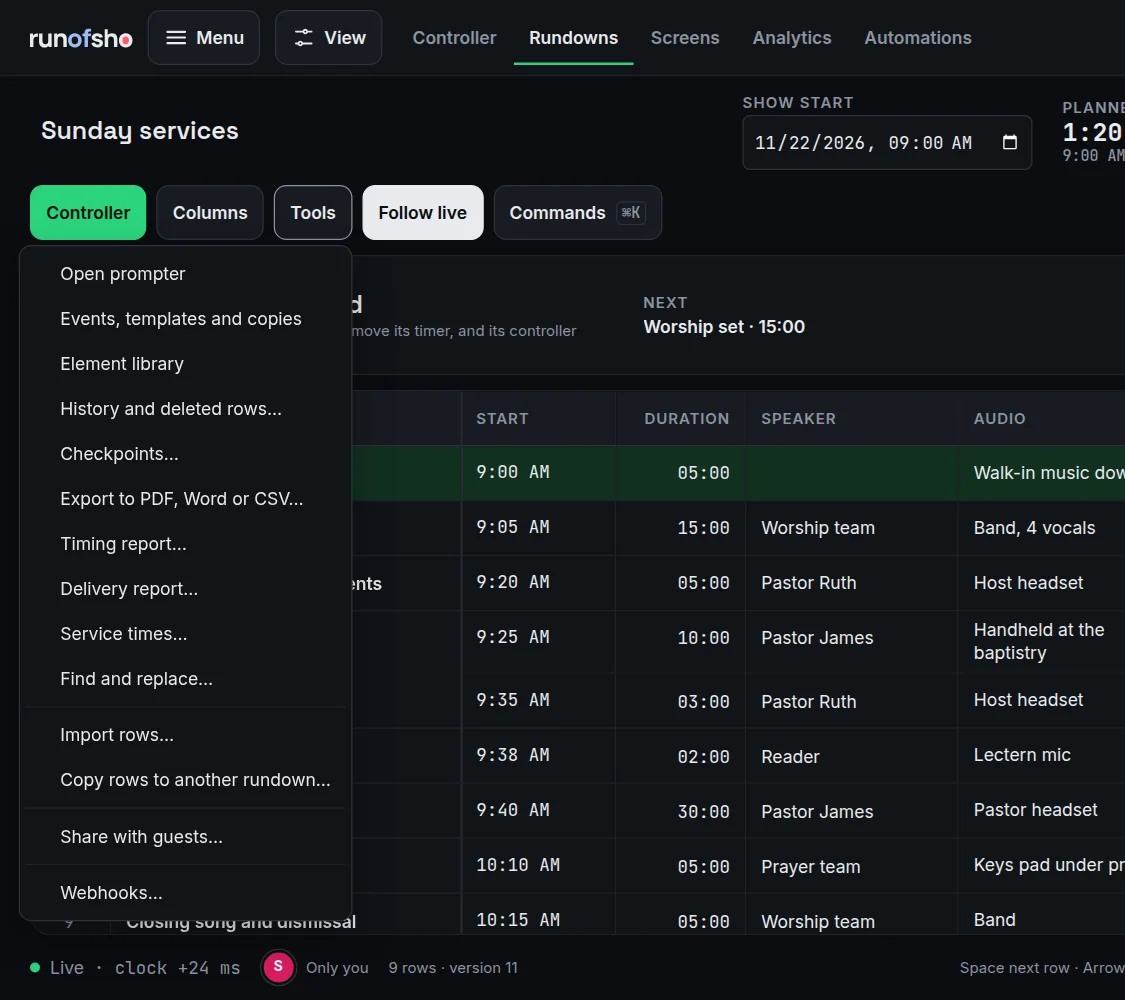
In the rundown editor, open Tools and choose Service times…. The entry stays greyed out until the rundown has a show start.
Step 2: Add each service
Give each service a name and a start time, then press Save. The dialog suggests the show start and two hours later, which fits a 9:00 and an 11:00. Use Add a service for a third, such as a Saturday evening or a 12:30 Spanish service on the same day.
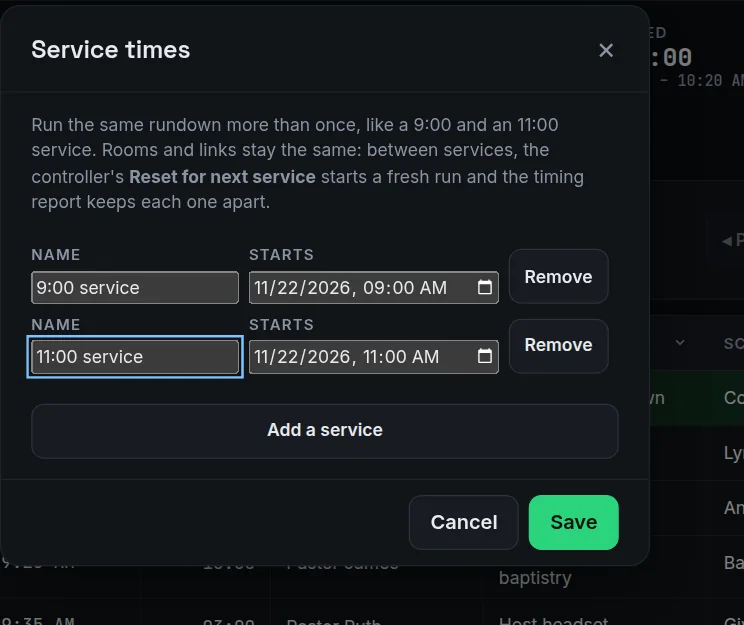
The rundown is still one document. Change the worship set from 15 to 18 minutes and both services change. Move the show start to next Sunday and both services move with it. Duplicate for next time at the end of the service copies the service times along with the rows.
The editor now shows which service it is set up for next to the show start, for example 9:00 service (1 of 2). Click it to come back to this dialog.
Step 3: Mark the rows that only happen in one service
Some things only happen once a morning: a baptism at 11:00, a child dedication, a guest speaker who leaves early. Open the row's … menu and untick the services it does not belong to under Runs in.
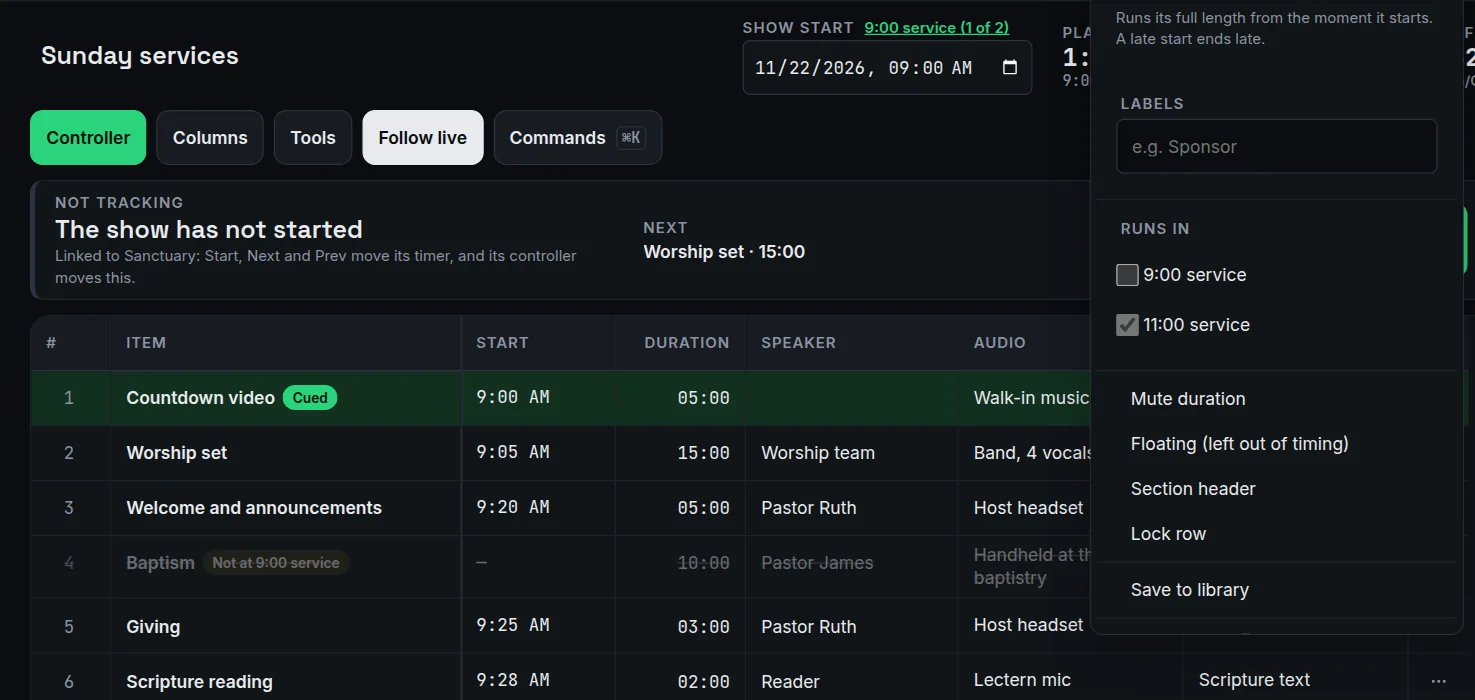
A row left out of a service is never deleted or hidden. It stays in the plan, greyed out and tagged, so everyone reading the run of show sees the same document. While that service runs, the row takes no time, Next steps over it, and the show caller cannot take it live by mistake.
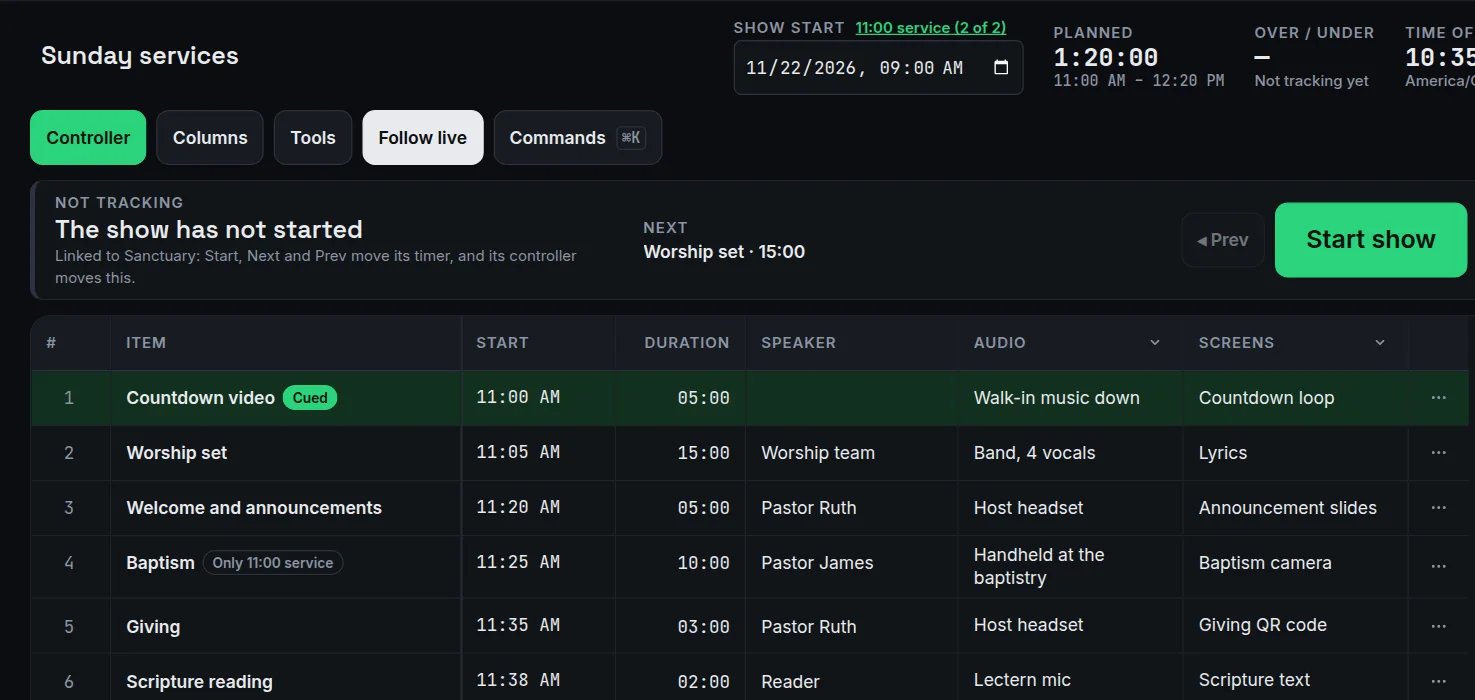
When the rundown is set up for the 11:00 service, every start time moves two hours and the baptism is back in, tagged Only 11:00 service:
Step 4: Run the first service as usual
Nothing changes on Sunday morning. The show caller presses Start show and Next in the editor, or the operator runs the timers from the controller. The stage screens follow along as they always do.
If you are new to calling a service, how to call a show covers standbys and gos. For pastors who run long, see keeping speakers on time.
Step 5: Reset the room for the next service
When the last row of the 9:00 service is done, the controller offers the next service:
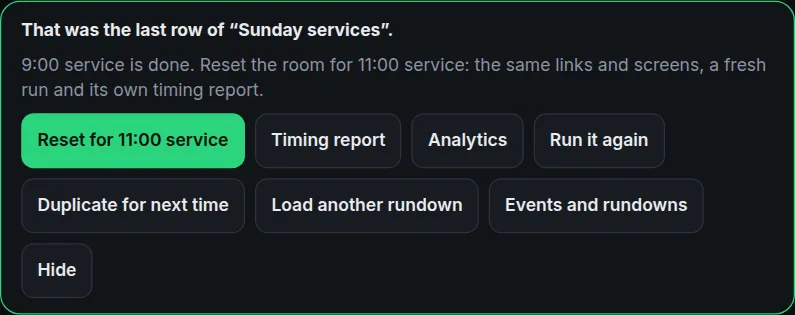
Pressing Reset for 11:00 service:
- starts a fresh run of the same rundown, so the 9:00 service's actual times are kept apart for the report,
- sets the rundown up for 11:00: the times move and rows for that service come back in,
- cues the first row, and
- puts every screen on the holding screen until the first timer starts.
If a timer is still running, runofsho asks before it stops it, so a service that runs over is never cut short by an accidental tap.
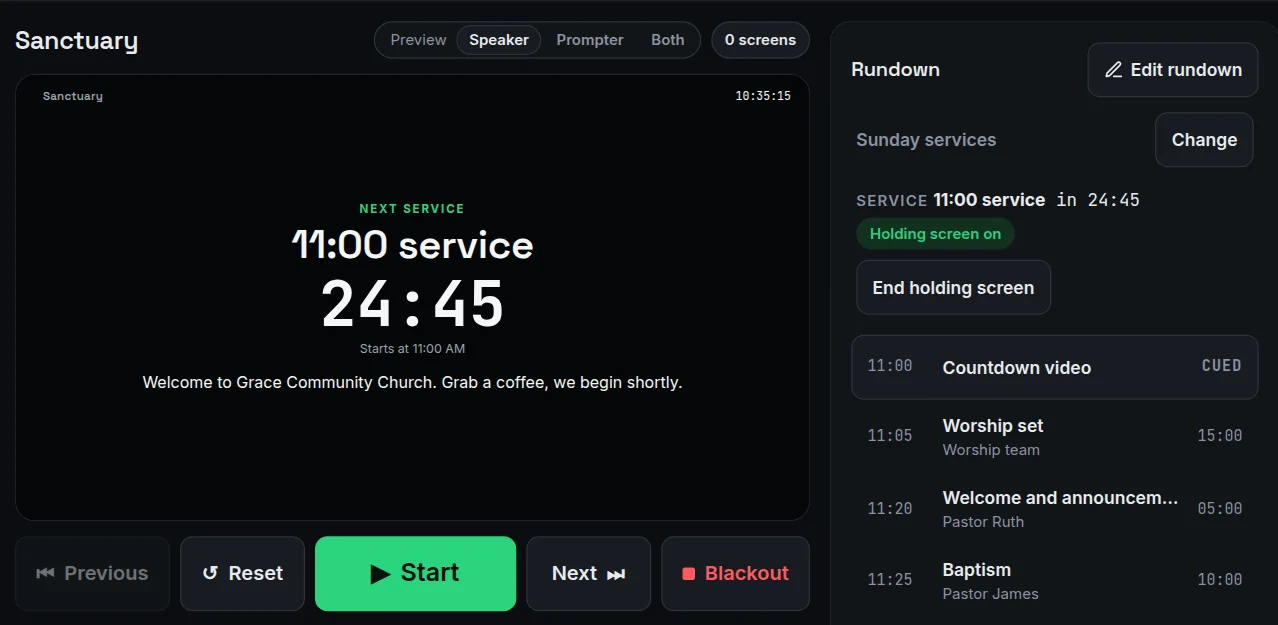
The holding screen between services
While the room waits, the stage monitor, confidence screens and lobby displays show the next service, a countdown to its start and a message of your choice:
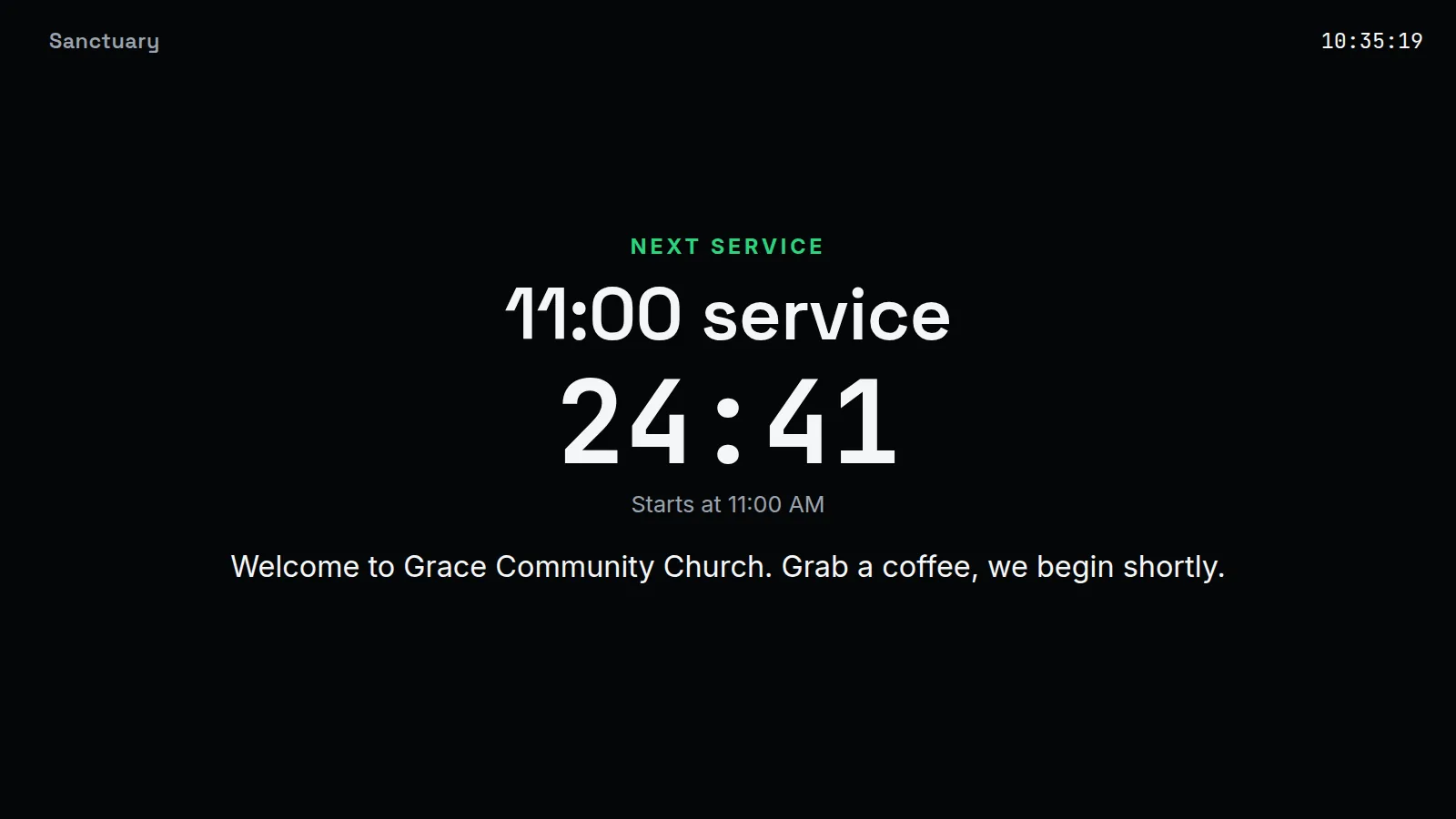
The holding screen turns off by itself the moment anyone starts a timer, so there is nothing to remember at 11:00. You can also turn it on or off by hand with Holding screen under the rundown in the controller. Livestream overlays show nothing while it is on.
Let the room reset itself
If the same volunteer runs both services, the reset is one button. If the booth changes hands between services, or nobody is there at 10:45, the room can do it by itself. In the controller, open the room menu (the room's name at the top of the page), choose Rename "Sanctuary", timezone and services… and look under Between services:
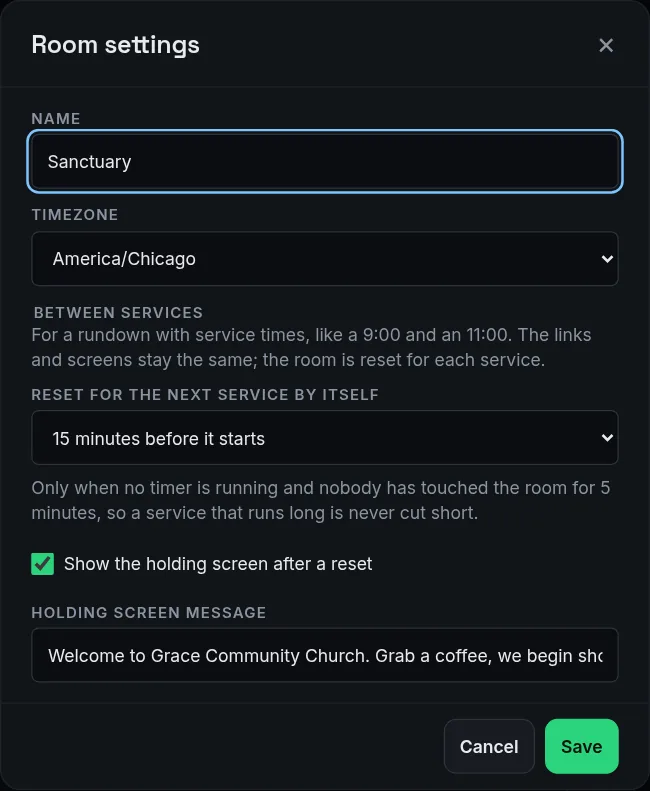
- Reset for the next service by itself: pick how long before each service, from 10 minutes to an hour. The room only resets when no timer is running and nobody has touched the room for five minutes. A first service that runs into the reset time is left alone and reset once it has finished.
- Show the holding screen after a reset: on by default. Untick it if your lobby screens should keep showing something else.
- Holding screen message: a welcome, the Wi-Fi name or where the kids check in. Up to 200 characters.
Step 6: Compare the services afterwards
Open Tools → Timing report… in the editor and choose Compare services. Every row is shown with how long it really ran in each service, next to its planned length:
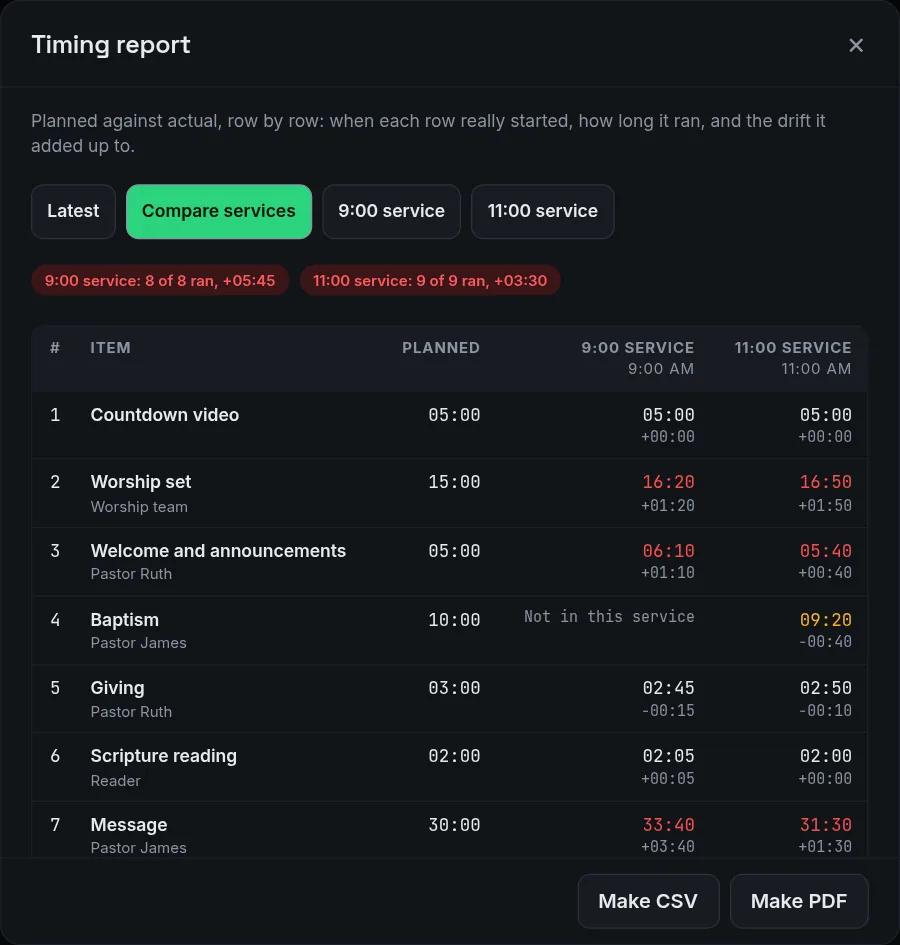
This is the conversation to have with the worship leader and the preaching pastor on Monday. In this example the worship set ran over in both services and the message ran nearly four minutes long at 9:00. That is a pattern, not an accident, and the plan for next Sunday should either allow for it or ask for less. Each service can also be opened on its own with the buttons along the top.
Christmas Eve: several services in one evening
Christmas Eve is a night when many churches run several services, often a short family service in the afternoon, a candlelight service in the early evening and a late one. Everything above applies, with three differences.
- Start from a Christmas Eve plan. The free Christmas Eve candlelight service template is a 56-minute service with a 10-minute prelude at the start and a 20-minute room reset at the end, so the gap between services is already in the plan.
- Enter the time the prelude starts. Service times are counted from the first row. A 6:00 service with a 10-minute prelude is a 5:50 service time. Keep the name on the sign, "6:00 service", so volunteers see the time they know.
- Mark the rows that belong to one service. The children's nativity belongs to the early service and communion often to the late one. Untick the other services under Runs in, and the rows stay in the plan, greyed out, for everyone who reads it.
Tips from Sunday mornings
- Plan the first service, not the average. Build the rundown with the 9:00 service's real timings, then mark the rows that only happen later. One honest plan beats two that drift apart.
- Put the gap in the plan. If the 9:00 service runs long, the 11:00 still starts at 11:00. Look at the time between the end of the first service and the start of the next, and protect at least 20 minutes for the lobby to empty and fill.
- Keep the names short. "9:00 service" fits on a stage monitor from the back of the room. "First Sunday morning worship gathering" does not.
- Send links once. Because the room never changes, the links you sent the band, the camera crew and the lobby screens in August still work in December.
FAQ
Do volunteers need new links for the second service?
No. Every link belongs to the room, and the room stays the same. The reset changes what the screens show, not where they point. Screens that are already open switch to the holding screen by themselves.
Can one row run in only one service?
Yes. Open the row's … menu and untick the other services under Runs in. In the services it is not part of, the row is greyed out, takes no time and is skipped by Next, the show caller and the report.
What happens if the first service runs long?
Nothing is cut off. The reset refuses a running timer unless the operator confirms it, and the automatic reset waits until no timer is running and the room has been left alone for five minutes. The second service keeps its own planned start time.
Can we run three services, or a Saturday evening service?
Yes. A rundown can have up to ten service times, on the same day or on different days, such as a Saturday 5:00 PM service and two on Sunday morning.
Does this work on the Free plan?
Service times, rows for one service, the reset and the holding screen work on every plan, including Free. The Free plan allows ten rows per rundown and three connected screens per room. The side-by-side timing report is part of the Studio plan.
Can a Stream Deck or Companion button do the reset?
Yes. The reset and the holding screen are also available as plain web addresses for Bitfocus Companion, Stream Deck and other button panels, and through the runofsho API.