- Home
- Features
runofsho features
Call a cue. See what the stage sees.
Start the first cue in a sample rundown. Add a minute on the controller and watch the speaker’s countdown change with it.
No account or credit card needed.No card needed. Test a cue here, or create a free account for your computer.
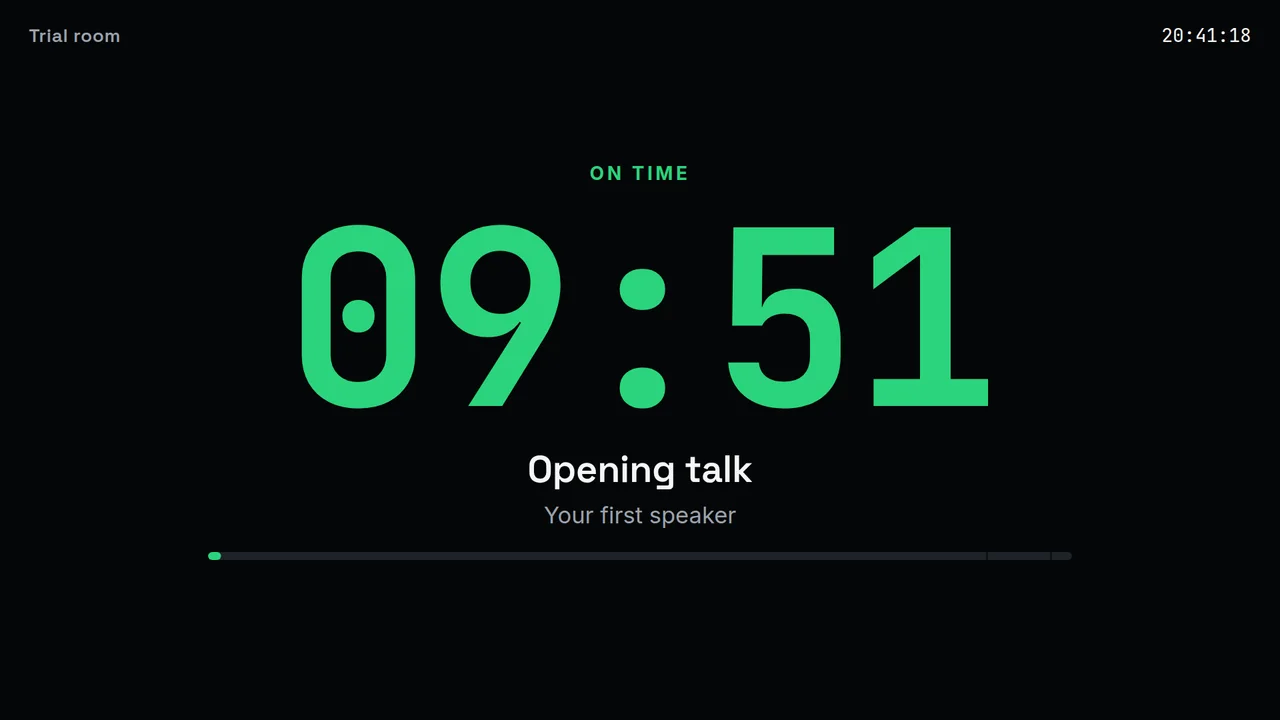
runofsho is run of show and show rundown software for live events. You plan the show in a shared rundown that works out the start times. The show caller runs it from a controller. Stage timers, confidence monitors, lobby displays, a prompter and crew links follow along in any browser. Free covers the core: rundowns, timers, messages, output screens, show calling and read-only guest links. Pro adds the prompter, presenter chat, branding, import and export. Studio adds team seats, automations, reports and the audit log. Every feature is also in the public API.
Plan the show in a shared rundown, call each cue from the controller, and every stage timer, confidence monitor and crew link follows in a browser. The core is free.
ON THIS PAGE
- One cue change, three screens
- The rundown editor
- Show calling from the controller
- Stage timers and output screens
- Messages and presenter chat
- The prompter
- Links for the crew, guests and clients
- The same show more than once
- Automations
- Reports, analytics and the audit log
- API, webhooks and integrations
- What each plan includes
- FAQ
One cue change, three screens
Watch the handoff from Welcome to Opening keynote in a staged Annual Summit rehearsal. The caller and talent timer were recorded together in the real app. The timer shot replays the cue; the Pro prompter shot comes later in the same rehearsal.
Watch or download the silent walkthrough (MP4, 15 seconds)
Read the 15-second video transcript
- 0:00 | Show caller. Welcome is live. The caller presses Next; the green live row moves to Opening keynote.
- 0:05.4 | Talent timer, replay of the same cue. Welcome’s red countdown changes to green. The screen names Maya Chen and starts counting down her 20-minute keynote.
- 0:10.8 | Pro prompter, later in the rehearsal. The operator rolls the keynote text past the reading line. Maya’s opening words are “Thank you, and good morning.”
The screenshots below show a different sample conference, “Creator Summit”, with four rooms running at once.
The rundown editor
The rundown is the plan everyone works from. It looks like a spreadsheet and behaves like one: type a duration and every start time below it moves.
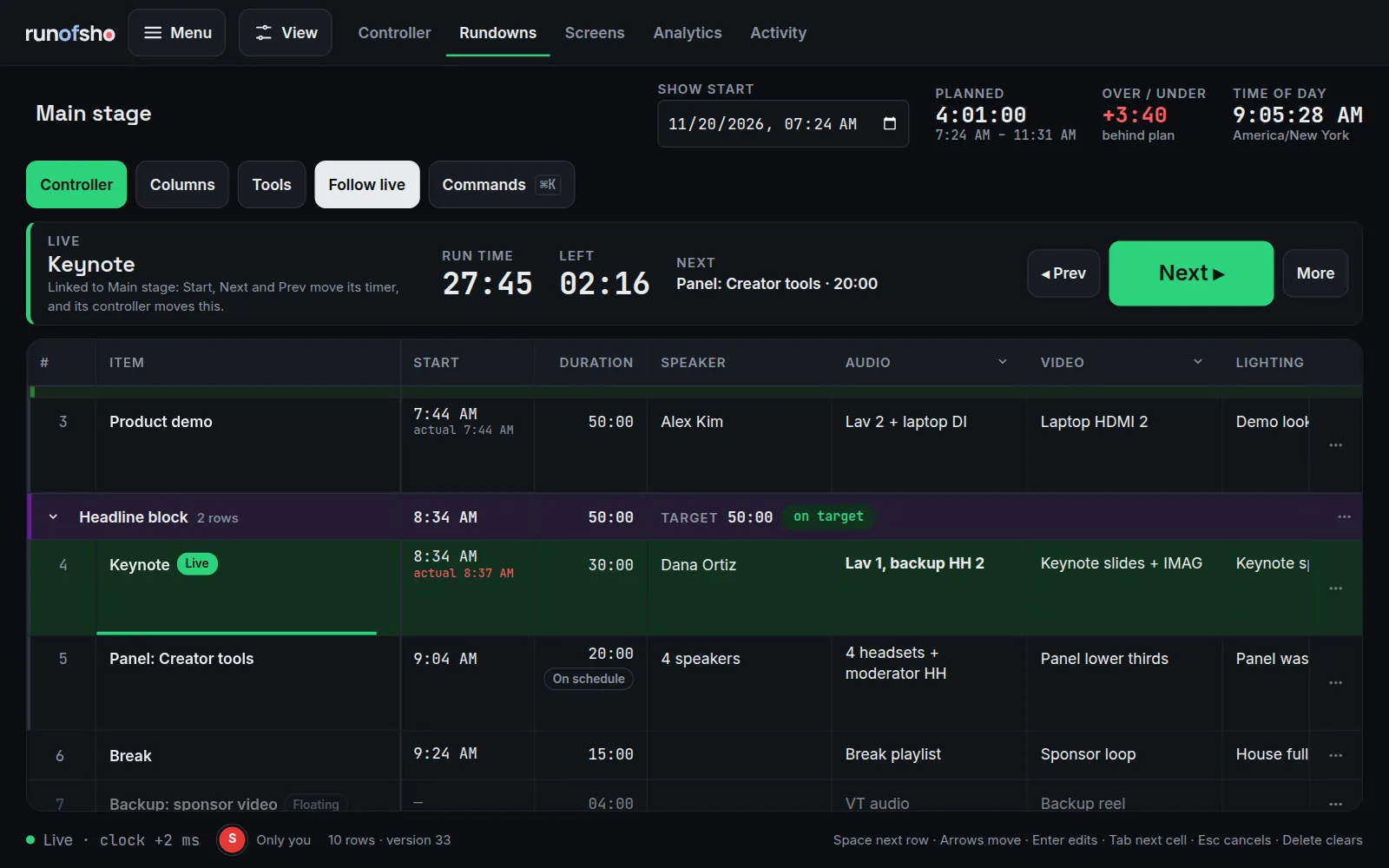
- Start times worked out for you. Set the show start and each row's length. The planned end and the over/under update as you edit and as the show runs.
- Your own columns. Text, dropdowns such as a status, durations, rich text for scripts, timestamps and private notes that only you see. One column per department keeps audio, video and lighting notes on the same row.
- Groups, hard starts and floating rows. Put rows in a group with a target length, fix a row to a clock time, or keep a backup segment in the plan without it counting towards the running time.
- Edit together. Several people can edit the same rundown at once. You see who else is in it, every cell keeps its history, rows can be locked, and find and replace works across the rundown.
- Follow live. While the show runs, the editor scrolls with the live row, so the producer can keep fixing the plan without losing their place.
- Start from what you have. Start from a template or duplicate last week's show. Importing from CSV, Excel or Google Sheets, and exporting to CSV, Excel, PDF or Word, are on Pro. Studio adds global elements: a segment such as a sponsor read, kept in one place and reused across rundowns.
Show calling from the controller
The controller is where the show is run. One press moves the whole room on to the next cue.
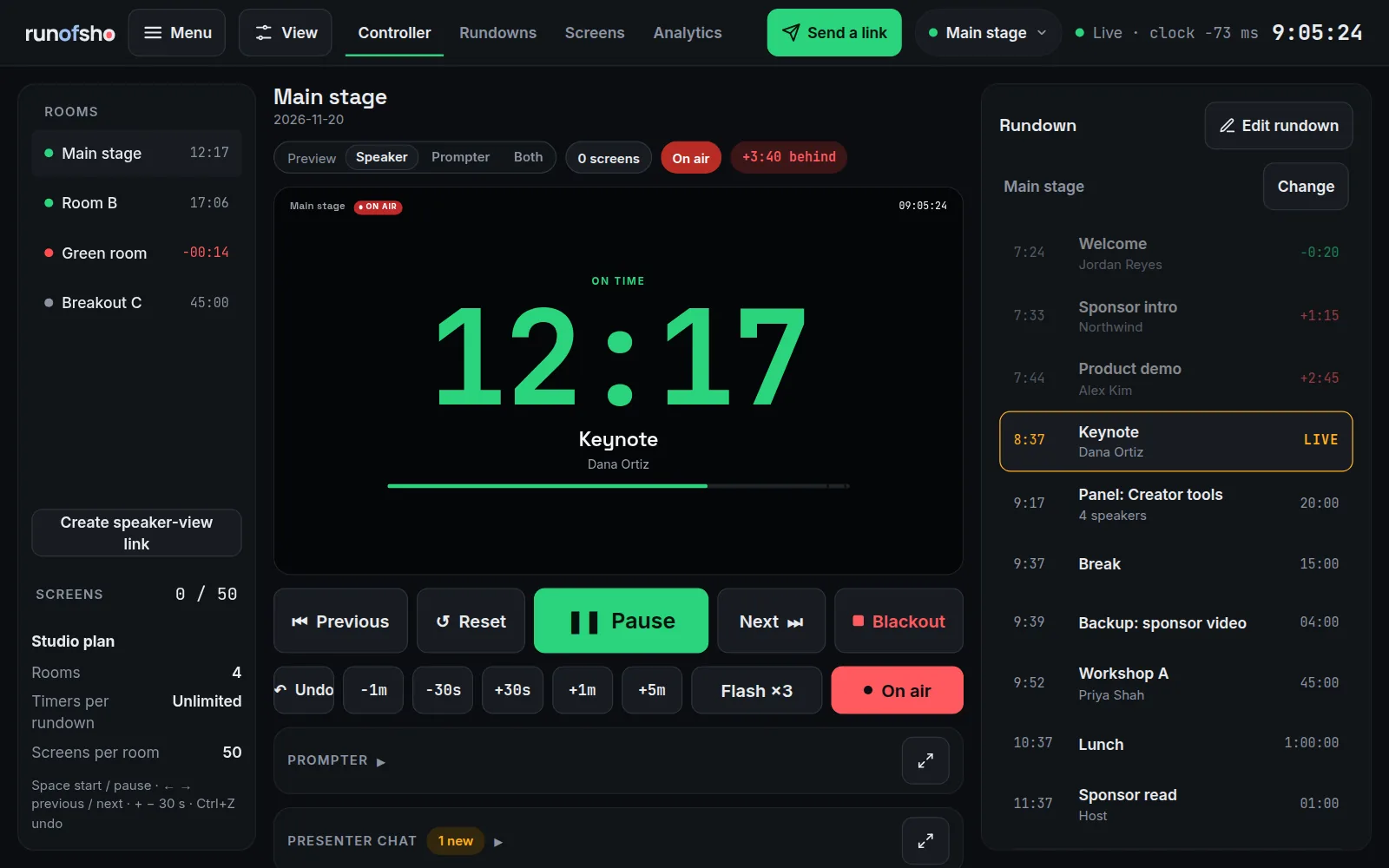
- Start, Next, Previous, Pause and Reset, with Undo for the press you did not mean. Keyboard shortcuts cover the common ones: Space to start or pause, the arrow keys for previous and next, plus and minus for time.
- Change the time live. Add 30 seconds, a minute or five minutes, or take away 30 seconds or a minute, and every start time after it moves.
- Get attention. Flash the screens, black them out, or switch on the "on air" light.
- See what each screen shows. The preview switches between the speaker view and the prompter.
- Every room at a glance. The room list shows each room's clock, so one operator can keep an eye on several stages.
- Planned against actual. The show caller's presses record how long each row really ran, so the over/under is real and the report afterwards is right.
- Two operators, one press. If two people press Next at the same moment, the show moves on once, not twice.
Try it: Call your first cue, then add a minute while the clock is running.
Stage timers and output screens
Any browser can be a screen. Open an output link full screen on a monitor, a tablet or a laptop, and it follows the room.
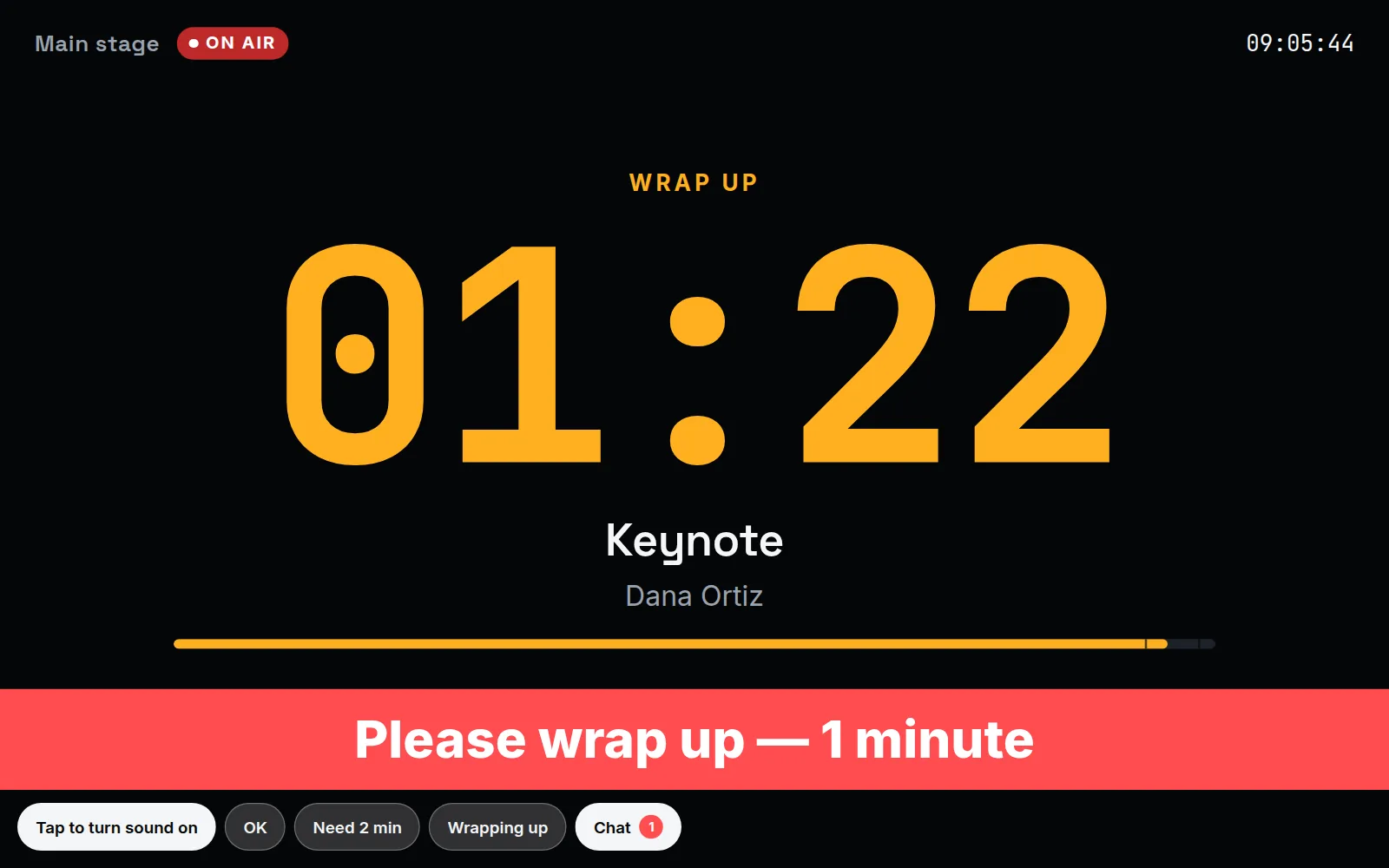
- Speaker and confidence screens show the countdown in large numbers. Green turns amber, then red, as the slot runs out, and the thresholds can be set row by row.
- Lobby, overlay and tally views. A lobby display for the audience, a graphic for a livestream (open it as a browser source in OBS or vMix), and a tally light for a camera position.
- A holding screen between sessions or services shows what is next and counts down to it.
- Chimes, branding, passwords and layouts. On Free, screens carry a small runofsho mark in the corner. Pro replaces it with your own logo and colors, and adds sounds as a timer reaches amber, red or zero, a password on any screen link, and custom layouts.
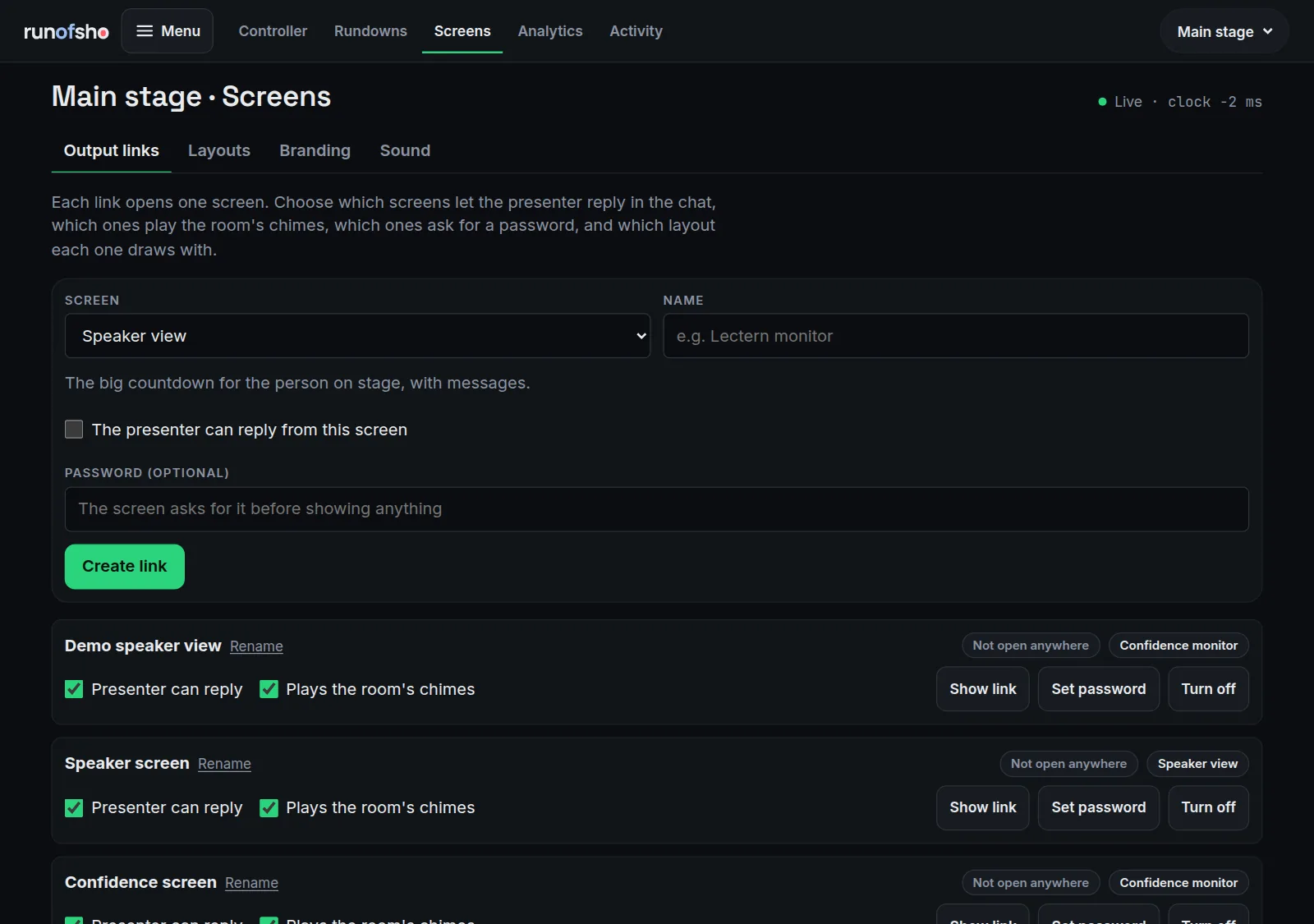
How many screens a room can have open at once depends on the plan: 3 on Free, 15 on Pro, 50 on Studio and up to 500 on Enterprise.
Try it: Test the stage timer. Start the countdown and send a message to see it from the speaker’s side.
Messages and presenter chat
The controller can put a message on the stage screens without anyone walking on stage. Save the messages you use often, such as "Please wrap up" or "Mic check, please", and show them with one press, in color and in bold. A message appears on the room's screens until it is cleared.
On Pro, presenters can answer. The speaker screen has quick replies such as OK, Need 2 min and Wrapping up, and a chat with the control room, so a question from the stage does not need a runner.
The prompter
On Pro, the prompter shows the script column of the rundown on a stage screen or a tablet and moves to the right script as the show caller takes each cue.
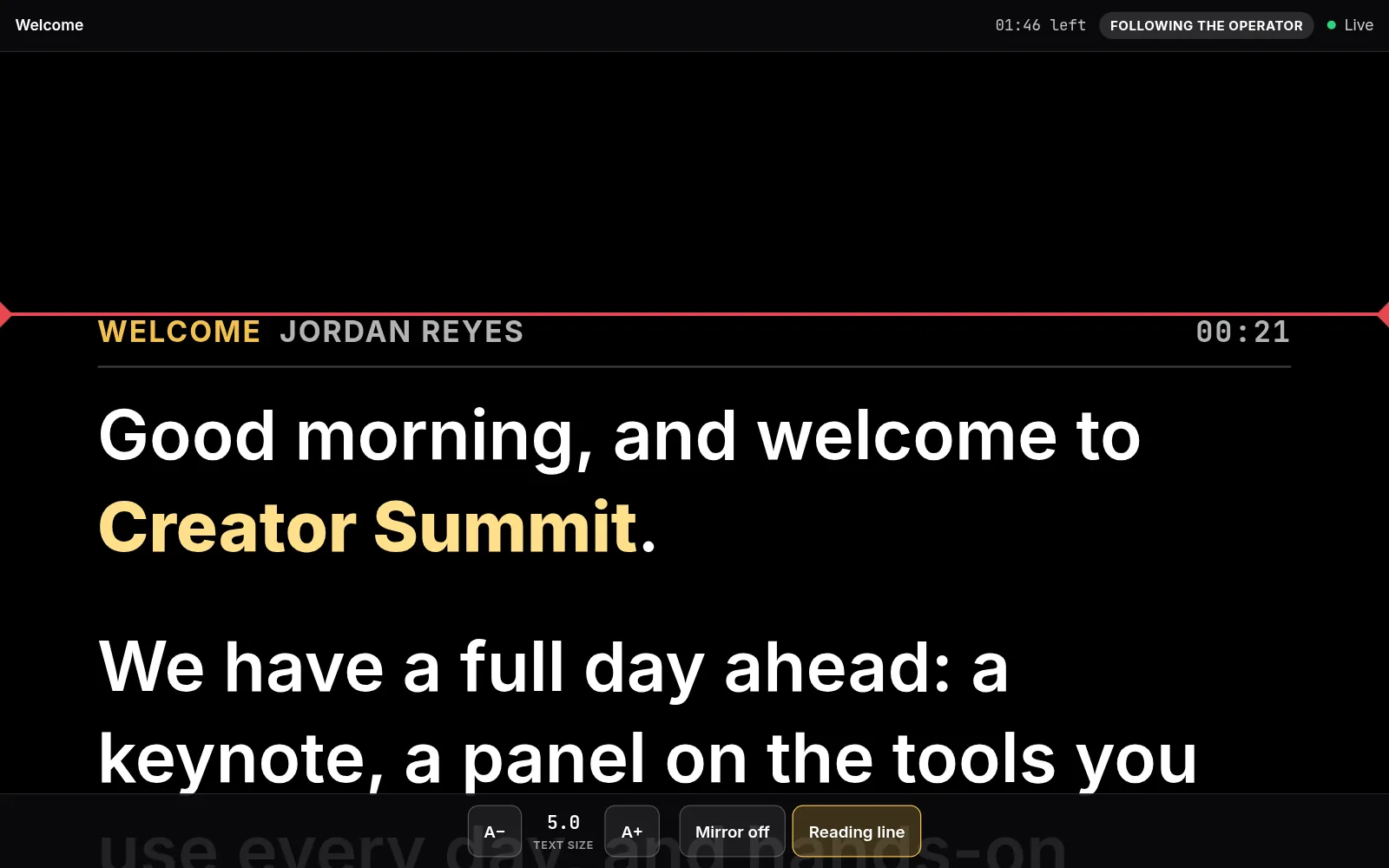
- It follows the operator. The controller has a prompter remote for play, pause, speed and jumps, and every prompter display follows it.
- Text size, a mirror for a glass prompter and a reading line are on the screen.
- The read-time tool estimates how long a script takes to read aloud, so the duration in the rundown is realistic.
Links for the crew, guests and clients
People who only need to follow the show do not need an account. The controller's Send a link makes the right kind of link for each person.
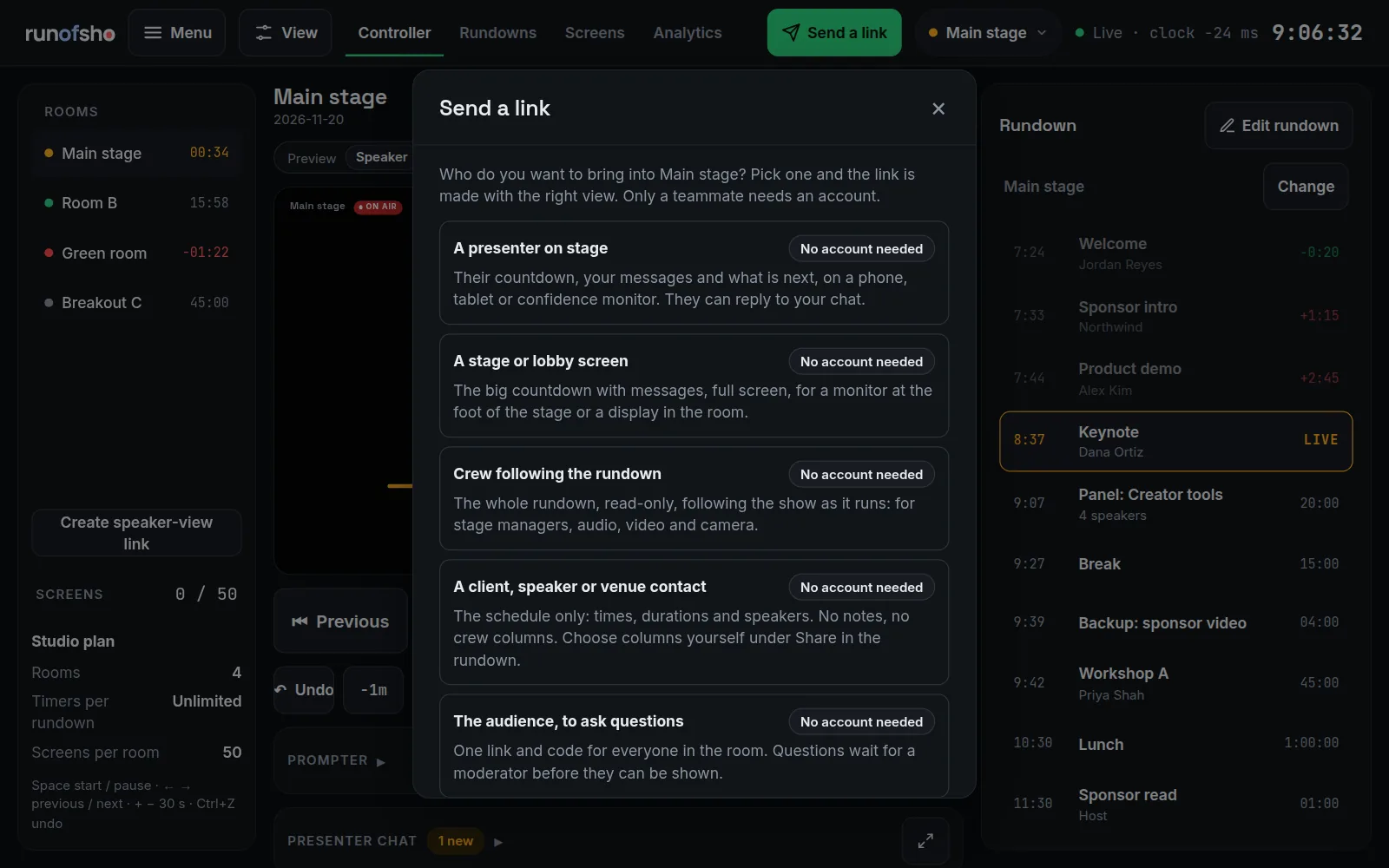
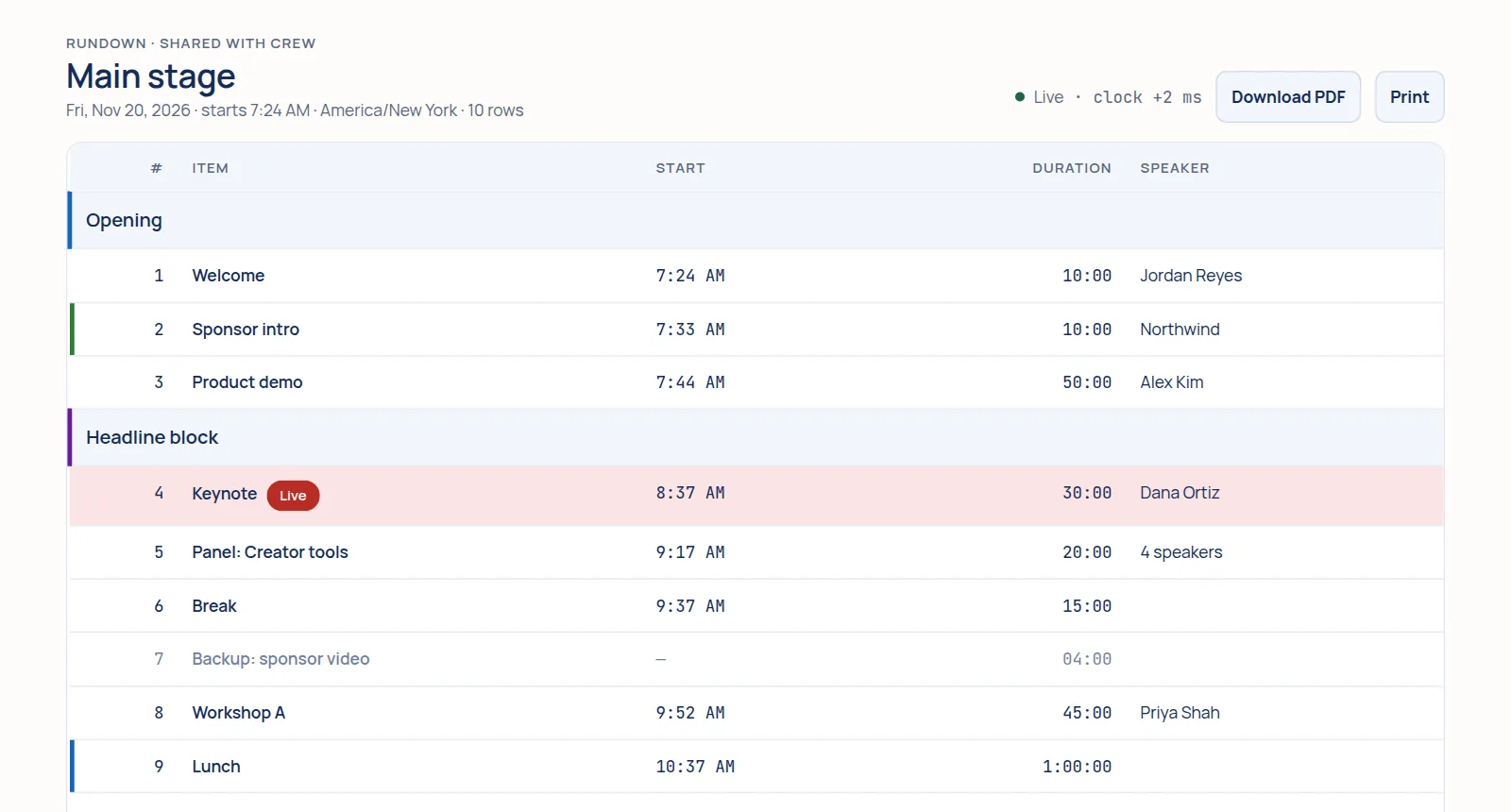
- Crew links show the whole rundown, read-only, following the show as it runs. Guests can print it, and on Pro download it as a PDF.
- Client, speaker and venue links show the schedule only: times, durations and speakers, without crew notes.
- Audience Q&A gives the room one link and code for questions, which wait for a moderator before anyone on stage sees them. Free allows 3 questions per room.
- Department and editor links let one team edit only its own columns, without an account. They are part of Studio.
Links that refresh are on every plan. Links that update the moment the show moves are on Pro.
The same show more than once
A church that runs a 9:00 and an 11:00 service, or a conference that repeats a session, runs it from one rundown. Add each service time, mark the rows that only happen in one of them, and reset the room between them. The screens and links stay the same, and each run keeps its own timing record. This works on every plan. See how to run multiple Sunday services from one run of show.
Automations
On Studio, a room can act by itself. A rule watches for a moment and then does one or more things in order.
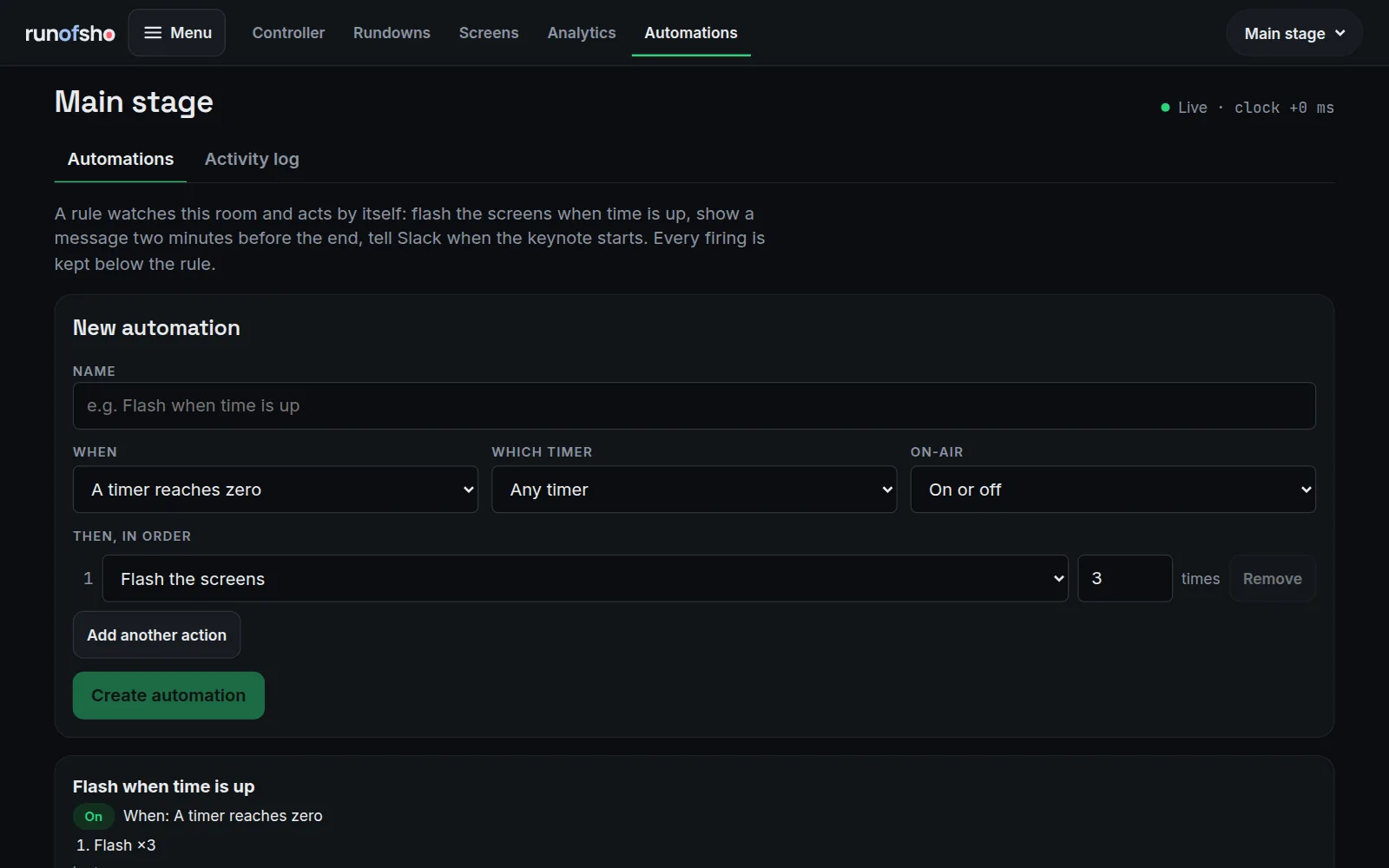
- When: a timer reaches zero, a timer has a given time left, or a set clock time arrives.
- Then: start or move the show, show or hide a message, flash, black out or switch on air, call a webhook, send an email, post to Slack or send a text message.
- Every time a rule runs, it is written to the room's activity log.
Reports, analytics and the audit log
Studio keeps the record of how each show really ran.
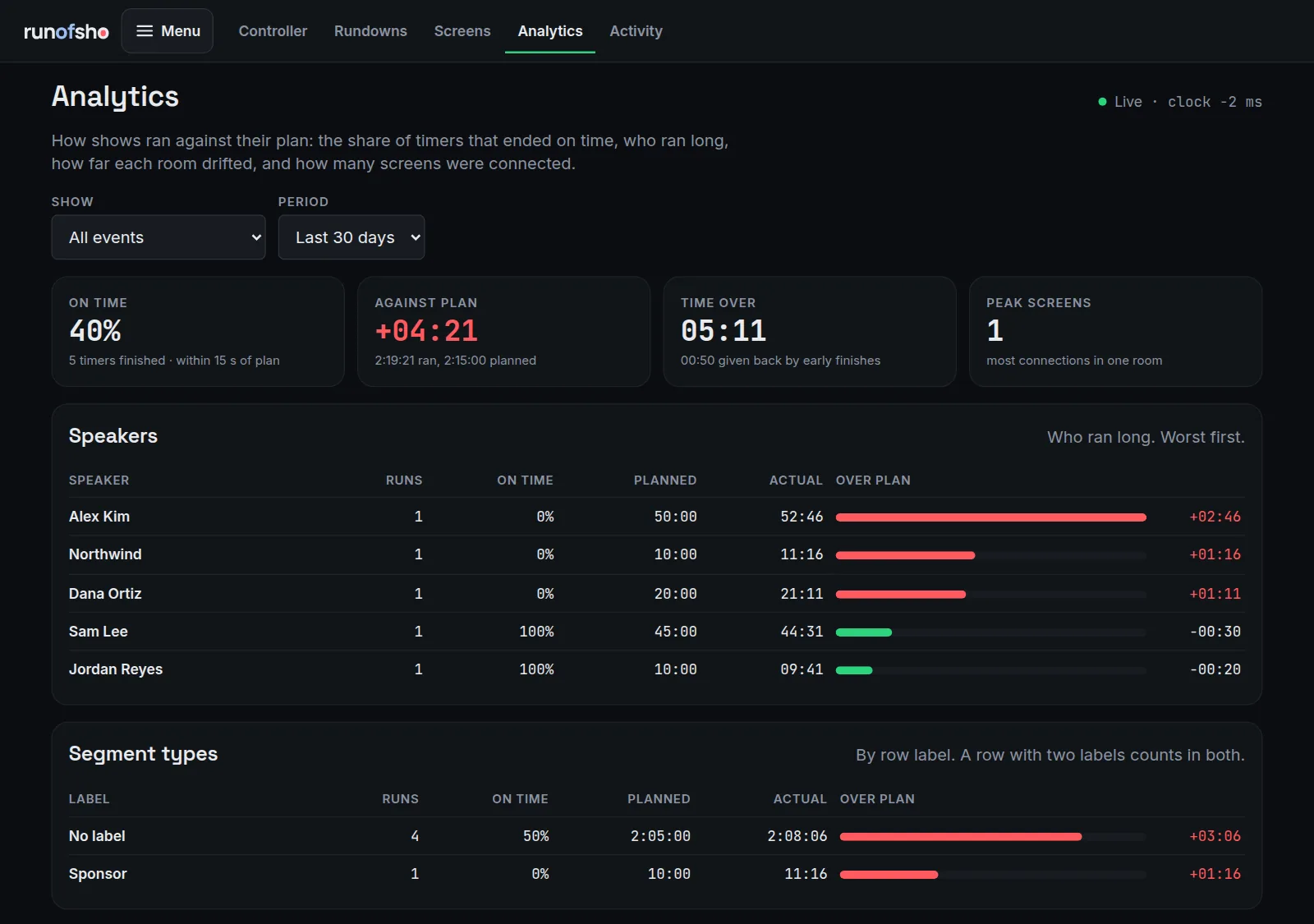
- Timing reports compare the planned length of every row with how long it ran, as PDF or CSV, and can compare repeated services side by side.
- Analytics across shows and rooms: the share of timers that ended on time, time over plan, drift per room, speakers who ran long and the peak number of connected screens.
- Checkpoints save the rundown as it stood, show what changed since, and restore it.
- The audit log records every change: who made it, from which device, and what it was before and after.
- Client workspaces keep each client's shows and API keys apart.
API, webhooks and integrations
Everything in the app is in the public API: the rundown, the controller, messages, screens, guest links, reports and billing. Real-time events arrive over Socket.IO or Server-Sent Events, and there are typed SDKs for TypeScript and PHP. Webhooks are on Pro.
Bitfocus Companion, Stream Deck, vMix, OBS, MIDI and OSC are designed to work with runofsho through the API, the vMix data feed, the overlay view and plain web addresses for button panels. They are still being tested on physical hardware. The developers page and core API endpoint index have the details.
AI assistants such as Claude, ChatGPT and Cursor can build, edit and check rundowns through the runofsho MCP server, a hosted endpoint you connect by signing in with your runofsho account or with an API key. It has read and plan tools only; it cannot cue or stop the show.
API requests are limited per minute by plan: 60 on Free, 600 on Pro and Studio, and 6,000 on Enterprise. The API Plus add-on raises the limit to 3,000.
What each plan includes
| Feature | Free | Pro | Studio |
|---|---|---|---|
| Rooms | 3 | Unlimited | Unlimited |
| Items per rundown | 10 | Unlimited | Unlimited |
| Connected screens per room | 3 | 15 | 50 |
| Seats | 1 | 1 | 5 |
| Rundown editor, show calling, timers, messages and output screens | Yes | Yes | Yes |
| Service times and the holding screen | Yes | Yes | Yes |
| Read-only guest links that refresh | Yes | Yes | Yes |
| Audience Q&A | Yes, 3 questions per room | Yes | Yes |
| Prompter and presenter chat | No | Yes | Yes |
| Live guest links | No | Yes | Yes |
| Your own branding on screens (Free shows a small runofsho mark) | No | Yes | Yes |
| Chimes, screen passwords and custom layouts | No | Yes | Yes |
| Import and export | No | Yes | Yes |
| Webhooks | No | Yes | Yes |
| Department and editor links | No | No | Yes |
| Automations | No | No | Yes |
| Timing reports, analytics, checkpoints and the audit log | No | No | Yes |
| Global elements and client workspaces | No | No | Yes |
Enterprise has everything in Studio with up to 500 screens per room, 25 seats and invoicing. Prices, Event Passes and add-ons are on the pricing page.
FAQ
Does runofsho need to be installed?
No. It runs in any modern browser. The controller, the editor and every screen are web pages, so a monitor only needs a browser and the link.
Does it work without internet?
No. Every screen follows the room over the internet. If your venue has no reliable connection, a tool that runs on the local network is the better choice. Our comparison with Ontime explains the difference.
Do crew and presenters need accounts?
No. Crew, guest, client, audience and screen links open without an account. Only the people who build and run the show sign in.
Which features are free?
The rundown editor, show calling, stage timers, messages, output screens, service times, the holding screen, read-only guest links, audience Q&A and the API, within the Free limits of 3 rooms, 10 items per rundown and 3 screens per room.
Is there single sign-on?
Not yet. Accounts sign in with email, Google or Microsoft.